June 24, 2026

Most Minneapolis law firms bought Microsoft 365, set up email, and moved on. That decision - treating M365 as a basic email and document platform - is exactly where the problems start.
The default setup gives every staff member broad access to files they shouldn't see, stores client matter documents in personal drives that disappear when attorneys leave, and ships with zero compliance controls for data retention or privilege protection. None of that is obvious until something breaks: a departing associate takes files with them, a phishing attack gets through on an unprotected account, or a bar inquiry requires records that no one can locate.
This article covers the five configuration mistakes that show up in almost every law firm M365 audit - what they are, why they matter under Minnesota's Rules of Professional Conduct, and exactly how to fix each one.

A default Microsoft 365 setup is a problem for law firms. Out of the box, Microsoft 365 gives every user broad access, stores files across overlapping locations, and ships with almost no legal-specific compliance controls enabled.
That matters because law firms handle confidential client data in accordance with ethical and regulatory obligations. Minnesota attorneys are bound by the Minnesota Rules of Professional Conduct, Rule 1.6, which requires reasonable measures to prevent unauthorized disclosure of client information. A poorly configured Microsoft 365 tenant is a direct exposure point.
The gap between "we have Microsoft 365" and "Microsoft 365 is configured for legal work" is wider than most attorneys realize - and the default setup almost always sits on the wrong side of that gap.
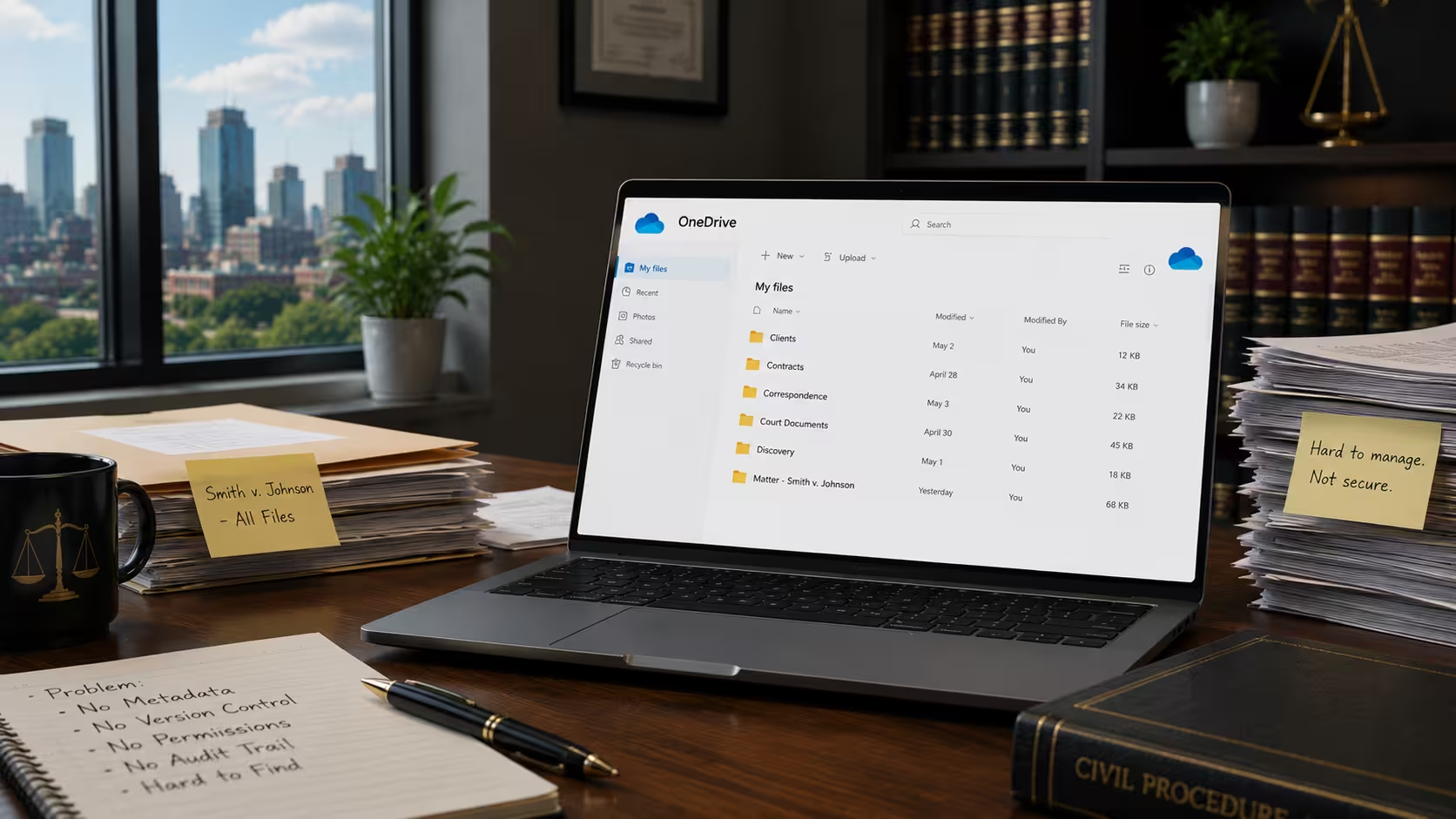
Most law firms end up storing client files in individual attorneys' OneDrive accounts because that's where Microsoft 365 points users by default. This creates a serious operational and security problem.
When files live in a personal OneDrive, access is lost when the account is deleted. If an attorney leaves the firm, takes sick leave, or is terminated, the files they "own" become inaccessible until IT manually recovers them - if recovery is even possible. There's no centralized search, no matter-level access control, and no consistent folder structure across the firm.
SharePoint is the correct storage layer for law firms. SharePoint organizes files by site (practice area or matter), applies permission groups at the folder level, and keeps files accessible to the firm - not to the individual. Every active matter should live in a SharePoint document library, not in someone's personal cloud drive.
The correct structure for a Minneapolis litigation firm, for example, looks like this:
Setting this up takes planning, not just clicking. The folder hierarchy, naming conventions, and permission groups need to be defined before files are migrated - otherwise, you replicate the same chaos in a new location.

Teams governance is one of the most commonly skipped steps in any Microsoft 365 setup, and it creates visible problems within weeks of deployment. Without governance rules, attorneys and staff create Teams channels freely - and within a few months, a 20-person firm can have 40+ Teams with no clear ownership, duplicate channels, and client conversations scattered across personal chats.
The fix is a Teams governance policy set in the Microsoft 365 Admin Center. Specifically, law firms need to restrict Team creation to IT administrators or designated partners, define a naming convention for client and matter channels (e.g., "Matter - [Client Name] - [Case Type]"), and set an expiration policy to review and archive inactive Teams on a schedule.
This is not about restricting how attorneys communicate. It's about making sure that when someone searches for a conversation about a specific client, they find it in one place - not scattered across six different chats, three Teams channels, and an email thread.
For firms using Clio or Neos as their case management system, Teams channels can also be linked to specific matters via Power Automate workflows, eliminating the need to manually update two systems whenever a file or message is relevant to an open case.

Many law firms purchase Microsoft 365 Business Basic or Business Standard licenses because they appear sufficient. For most tasks, they are. But both tiers are missing the compliance and security features that legal environments require.
Microsoft 365 Business Premium is the minimum appropriate license for law firms. Here's what Basic and Standard leave out:
Sensitivity labels alone are worth the upgrade for law firms. They allow attorneys to tag documents as "Confidential - Attorney-Client Privilege" or "Client Work Product," triggering automatic encryption and blocking forwarding or printing. That is a direct compliance tool - one that does not exist in the two lower license tiers.
Microsoft 365 Business Premium is priced at $22 per user per month on annual billing (Microsoft, 2026). For a 10-attorney firm, that is $220 per month - a fraction of the cost of a single data breach notification and remediation event.
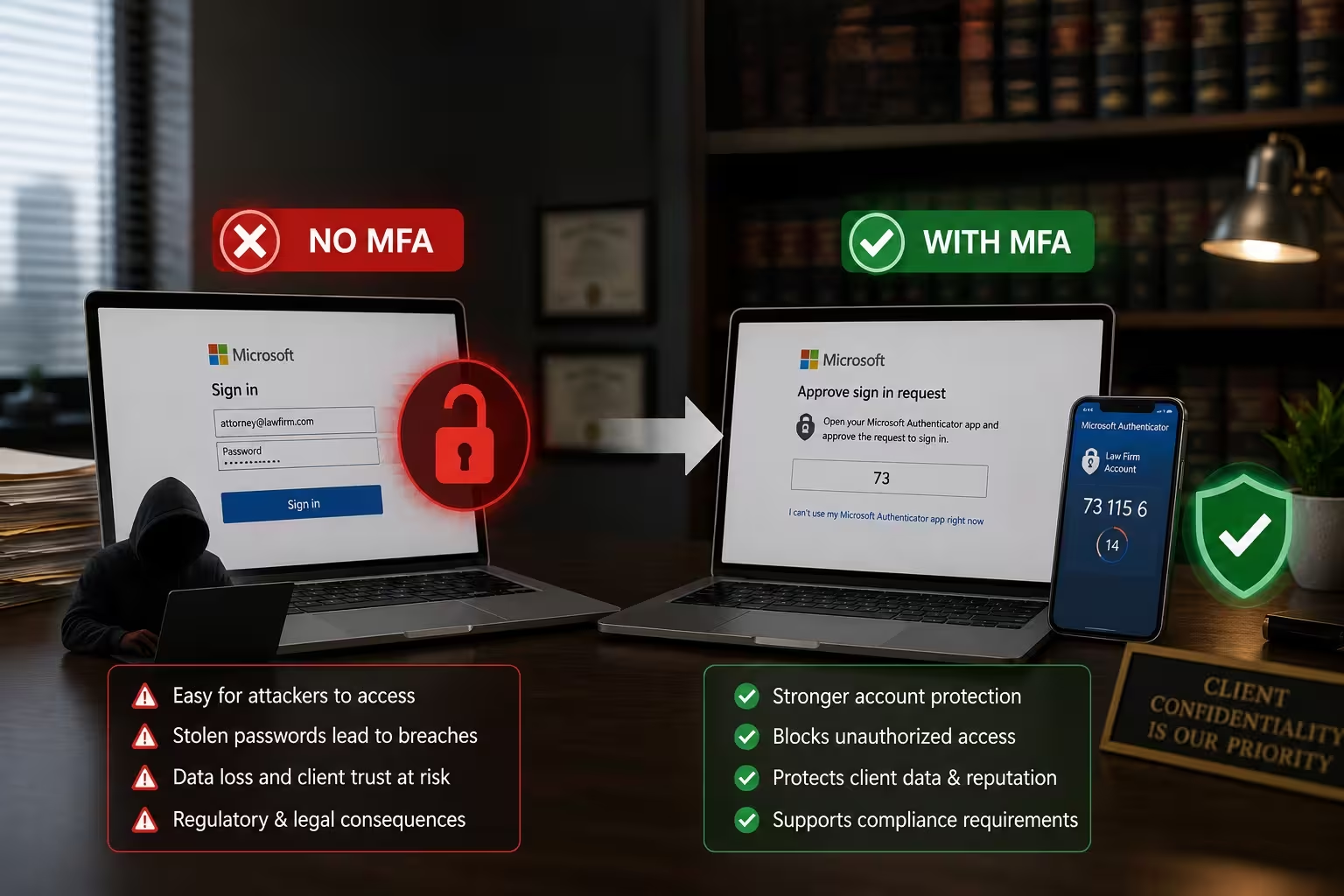
This one is straightforward: a Microsoft 365 account without Multi-Factor Authentication (MFA) is one stolen password away from a full breach. Law firms are high-value targets for credential attacks because they hold financial records, personal identification data, and litigation strategy documents.
MFA must be enabled for every account, not just admin accounts. The most common mistake is enabling MFA for the firm administrator but leaving standard attorney and staff accounts on username and password alone. Those are the accounts attackers target first.
The correct approach for a law firm is:
Family law and criminal defense firms are particular targets - they hold sensitive personal data but rarely have the security budgets of large commercial practices. Opposing parties, data brokers, and even foreign actors have targeted small legal practices specifically because large firms have hardened security, and small firms often do not.

Email is where most legal data lives - and most law firms have no policy controlling how long that email is kept, where it is archived, or what happens to it when an attorney leaves. That creates two problems: an ethical retention obligation risk and an eDiscovery liability.
Microsoft 365 includes a Compliance Center with retention policies that most firms never open. A retention policy tells Microsoft 365 what to do with email, Teams messages, and SharePoint files after a defined period - whether that's keeping them for seven years, deleting after 90 days, or holding indefinitely for active matters.
Minnesota's professional conduct rules do not set a universal document retention period, but the general standard of practice is five to seven years after matter closure (Minnesota State Bar Association). Without a policy in place, email is either deleted on the user's schedule (too short) or kept forever with no organization (too long and ungoverned).
The setup steps inside Microsoft 365 Compliance Center:
This takes about 30 minutes to configure. Most law firms have never done it.
A well-configured Microsoft 365 tenant at a law firm has five things in place simultaneously: structured SharePoint for matter files, governed Teams channels tied to case workflow, Business Premium licenses with Defender and Conditional Access active, MFA enforced on every account, and a compliance retention policy covering email and documents.
When those five pieces are in place, the day-to-day experience changes. Attorneys find files faster. Staff stop emailing attachments back and forth. Paralegals can pull everything related to a matter from one SharePoint folder without asking anyone. And if the firm ever faces a bar complaint or subpoena requiring records production, the data is organized and retrievable.
The reverse - a firm where none of these are configured - is where most Minneapolis law firms currently sit. Not because attorneys are careless - Microsoft 365 simply doesn't prompt you to configure these settings during setup. It just starts working at a basic level, and the gaps stay invisible until something breaks.

Exutory Solutions provides managed IT services for law firms in Minneapolis, with direct experience in Microsoft 365 environments and with legal platforms such as Clio, Neos, and iManage.
Their Microsoft 365 optimization service covers the full setup - SharePoint architecture, Teams governance, license review, MFA enforcement, Defender configuration, and compliance retention policy - and most projects complete within 5-10 business days. The first month of managed service is free, and new clients receive a $1,500 cloud health audit.
Exutory's response time averages under 3 minutes, with a 94% first-contact resolution rate. For a law firm where a downed system means missed deadlines and lost billable time, speed matters.
Law firms need Microsoft 365 Business Premium at a minimum. Business Basic and Business Standard are missing Conditional Access, Microsoft Defender for Business, Intune device management, and the compliance tools required for attorney-client privilege protection and data retention. Business Premium is priced at $22 per user per month on annual billing (Microsoft, 2026).
Microsoft 365 Business Premium includes the Microsoft Purview Compliance Center, which gives law firms retention policies, eDiscovery, Litigation Hold, sensitivity labels for document classification, and audit logs. These tools directly support obligations under Minnesota's Rules of Professional Conduct, Rule 1.6, regarding client data protection.
OneDrive is personal cloud storage tied to an individual user's account. SharePoint is a firm-wide cloud storage system organized by sites and permission groups. Law firms should store all client and matter files in SharePoint so files remain accessible to the firm if an attorney leaves, and so access permissions can be managed by matter rather than by individual.
Microsoft 365 Business Premium is secure enough for attorney-client communications when properly configured. The default configuration is not secure enough. Firms need MFA on all accounts, Conditional Access policies, Microsoft Defender for Business, and sensitivity labels applied to privileged documents before the platform meets a reasonable standard of care for legal data.
A full Microsoft 365 optimization for a law firm - covering SharePoint restructuring, Teams governance, license changes, MFA enforcement, and compliance policy setup - takes between 5 and 10 business days when handled by an experienced provider. Attempting to self-configure these settings without prior experience can extend the timeline to weeks and introduce configuration errors.


.avif)